
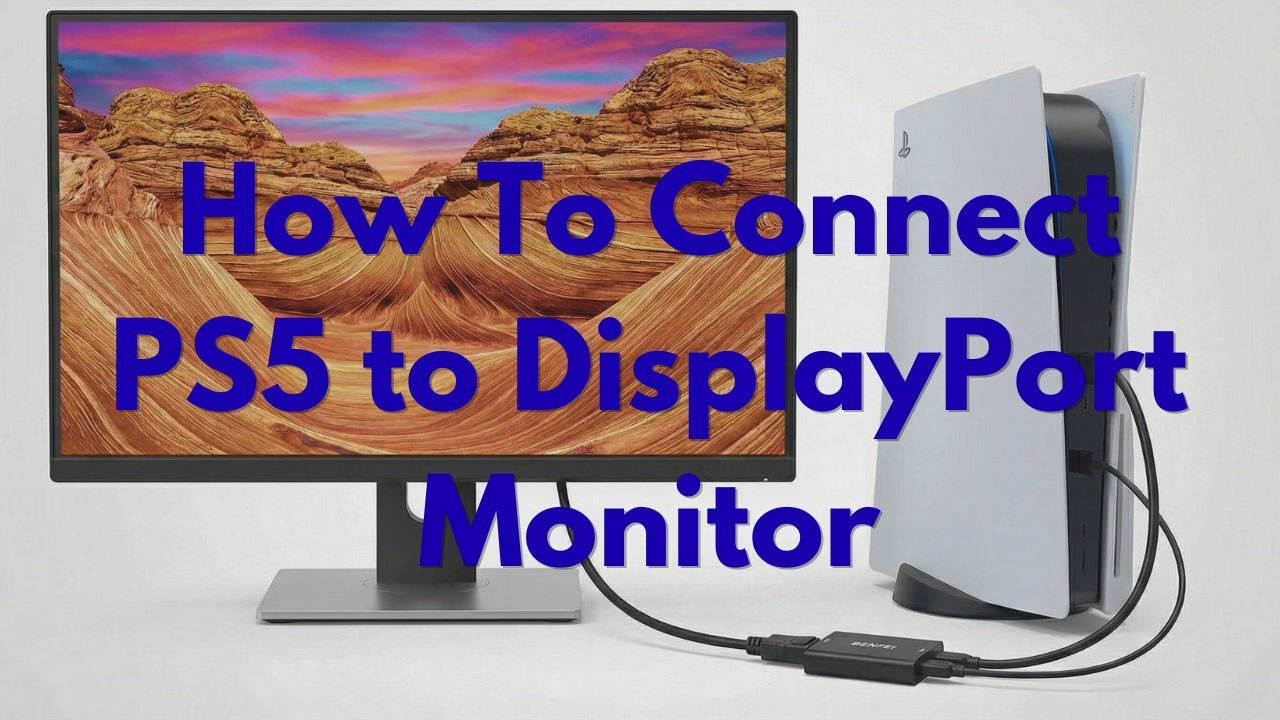
How to Connect PS5 to a DisplayPort Monitor: The 120Hz Guide (2026)
Can You Connect a PS5 to a DisplayPort Monitor?
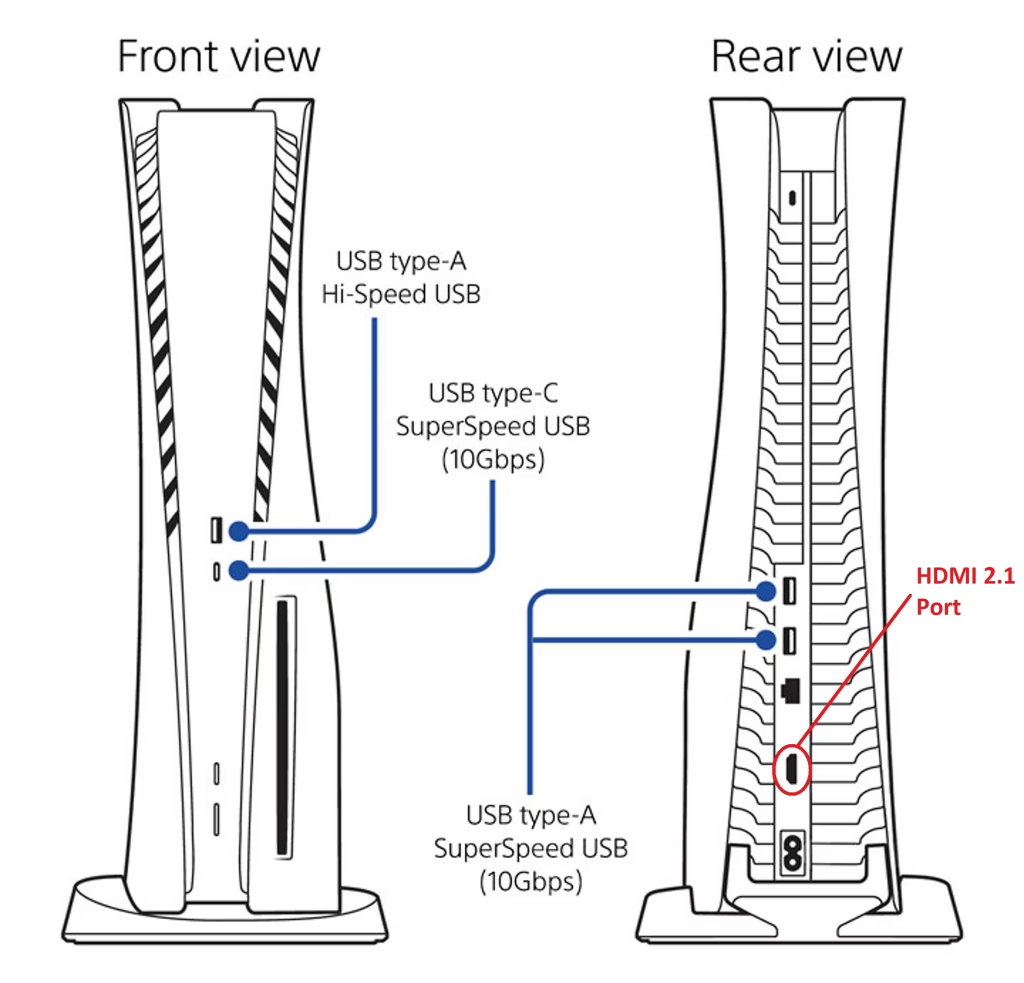
No, you cannot connect the PlayStation 5 to a DisplayPort monitor directly. The PS5 does not come with DisplayPort.
Sony designed the PS5 for living-room entertainment, with a single HDMI 2.1 port, which is compatible with pretty much all 4K TVs. This could be a problem for traditional PC gamers who want to connect their console to their high-refresh-rate gaming monitor that only have a DisplayPort input.
To connect your PS5 to a DisplayPort monitor, you can’t use a standard “passive” cable. Instead, you must use an Active HDMI to DisplayPort adapter/cable that converts the signal and provides external power.
Why Your Current Cable Isn’t Working
If you bought a “HDMI to DisplayPort” cable and still got a black screen when you connected your PS5 to your monitor, there are two likely reasons. Most cables sold online are actually DisplayPort to HDMI which are designed to plug a PC into a TV.
- The Direction Matters: These signals are directional. When connecting you PS5 to your monitor, the “source” is HDMI and the “display” is DisplayPort.
- The Lack of Power: Unlike a PC, the PS5’s HDMI port doesn’t provide enough voltage to “convert” the HDMI signal by itself. This is why you need an Active Adapter/Cable which has a powered chip that can handle the signal conversion.
The Best Active Adapters for PS5 (120Hz Verified)
Pay attention to the version numbers of the HDMI “In” and DisplayPort “Out” when you choose your Active HDMI-to-DisplayPort adapter. The PS5 is an HDMI 2.1 device, so using an older HDMI 2.0 chipset will reduce your data throughput.
| Conversion Chipset | Max Bandwidth | Max Resolution/Refresh (PS5) | Targeted Monitor Type |
| HDMI 2.0 to DP 1.2 | 18 Gbps | 4K @ 60Hz / 1080p @ 120Hz | 1080p 144Hz Gaming Monitors |
| HDMI 2.0 to DP 1.4 | 18 Gbps | 4K @ 60Hz / 1440p @ 120Hz* | 1440p Monitors (QHD) |
| HDMI 2.1 to DP 1.4 | 32.4 Gbps | 4K @ 120Hz / 1080p @ 240Hz | 4K 144Hz Premium Displays |
*1440p @ 120Hz support on HDMI 2.0 chipsets can be hit-or-miss depending on whether the monitor supports VESA Standard Timings over its DisplayPort input.
1. UPTab HDMI 2.1 to DisplayPort 1.4 Active Adapter
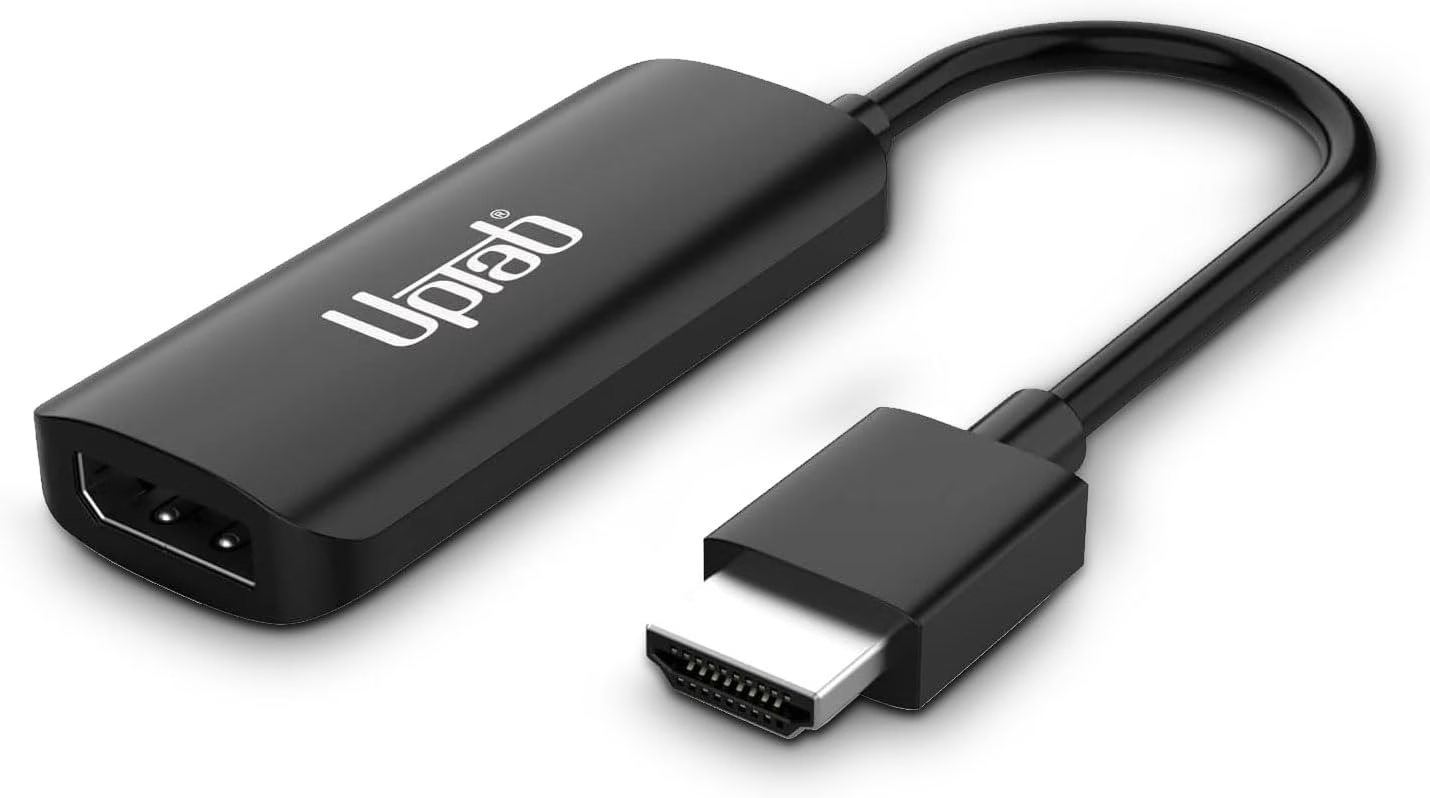
The UPTAB adapter is one of the few adapters offering HDMI 2.1 to DP 1.4 which supports resolutions up to 8K @ 60Hz or 4K @ 120Hz.
It features full HDCP 2.3 support, ensuring that high-bandwidth content works without handshake errors. The premium housing and connectors are designed for maximum heat dissipation and signal integrity during long gaming sessions.
The UPTAB adapter has an Active Chipset solution. It includes a dedicated USB power cable to ensure stable operation when connected to a PS5 or Xbox Series X.
As we mentioned earlier, this adapter is strictly uni-directional. It converts an HDMI source (PS5) to a DisplayPort monitor. It will not work in reverse for a PC-to-TV setup.
2. BENFEI HDMI to DisplayPort Adapter
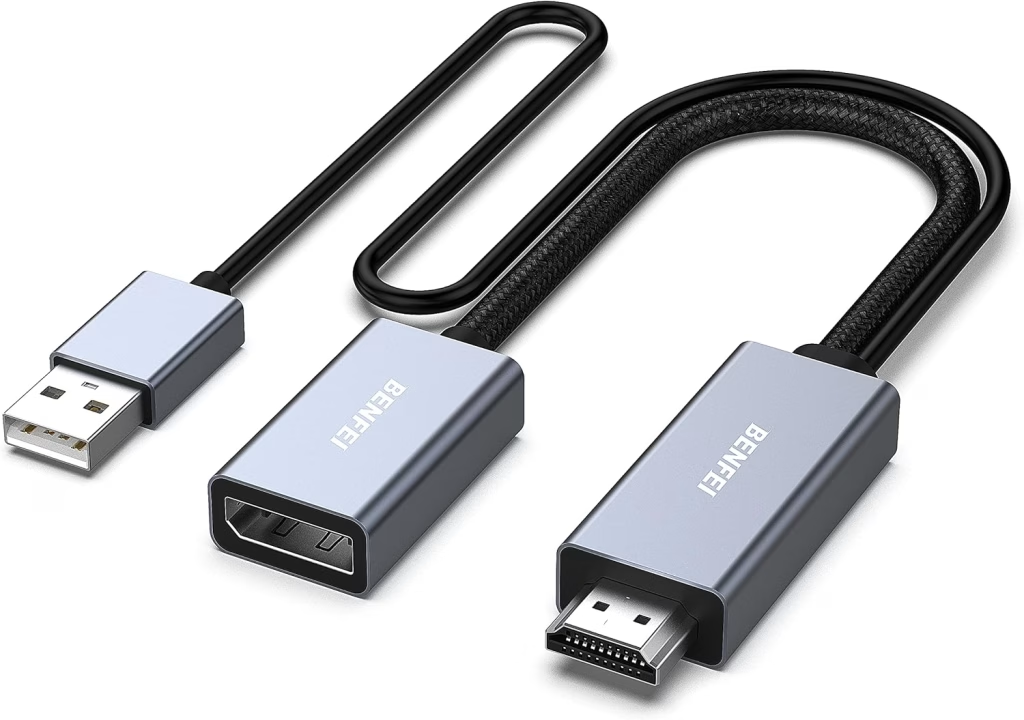
For gamers using 1440p or 1080p high-refresh-rate monitors, the BENFEI adapter offers an innovative solution that bridges the gap between HDMI 2.0b and DisplayPort 1.4. While it caps at 4K @ 60Hz, it shines at lower resolutions, supporting 2K (1440p) @ 144Hz and 1080p @ 165Hz.
It supports HBR2 (High-Bit-Rate 2) and is compatible with both HDCP 1.4 and 2.3. Featureing a durable braided nylon cable and a premium aluminum alloy casing for superior heat insulation, the non-slip design makes it much easier to plug in and unplug.
The BENFEI HDMI to DisplayPort adapter is compatible with a wide range of devices beyond gaming consoles like the PS5 and Xbox One/Series X. It works well with MacBook Pros, Raspberry Pi, and even VR headsets.
To provide sufficient voltage for the conversion chipset, connect the USB cord to an external power supply like the PS5’s USB port.
How to Avoid a Black Screen When Connecting PS5 to DisplayPort Monitor
Even if you have the right adapter, connecting a PS5 to your DisplayPort monitor and getting a 120Hz refresh rate can be tricky. Follow these steps:
- Plug in the USB Power: Every active adapter has a small USB tail. Plug this directly into the PS5’s front USB port to power the conversion chip.
- Enable Performance Mode: On your PS5, go to Settings > Saved Data and Game/App Settings > Game Presets and select Performance Mode.
- Automatic 120Hz: In Screen and Video, set Enable 120Hz Output to Automatic.
- Turn off HDR: Some adapters struggle to convert the HDR metadata alongside high refresh rates. If you have no signal, try disabling HDR in the PS5 settings first.
FAQ: Clarifying The PS5 DisplayPort Confusion
Does the PS5 have a DisplayPort?
No. It only has an HDMI 2.1 port, a power port, and USB ports.
Can I use a passive HDMI to DisplayPort cable?
No. Passive cables only work if the source is DisplayPort and the screen is HDMI. For the PS5, you must use an active adapter as the HDMI signal needs to be converted to a DisplayPort signal.
Will an adapter cause lag?
There will be a negligible lag, typically less than 1ms. This is virtually imperceptible even in competitive FPS games.
Final Thoughts On Connecting a PS5 to a DisplayPort Monitor
Converting the HDMI 2.1 output signal to a DisplayPort signal requires an Active chipset. Most adapters and cables available on the market today only convert the DisplayPort signal to a HDMI signal.
If you want to maintain your current set-up, then you will need to get a proper Active HDMI 2.1 to DisplayPort adapter. Take note that the active conversion requires more power and the adapter can get pretty hot. Personally, I wouldn’t recommend it and would just use the PS5 on a TV as it was intended.
Benjamin Wallace

A software engineer, I have a strong interest in technology, bot software and hardware. Blogging is a way to share what I have learned and hopefully people will find it useful.

A solid piece of content with a clear focus. The writing style is natural and easy to follow, which makes the information more accessible. Articles like this are always a pleasure to read.
Thanks and I hope you got yourself a good connector for your Playstation.
This is my first time pay a quick visit at here and i am really happy to read everthing at one place
Thanks for reading and I hope it helped you connect your PS5 to your monitor!