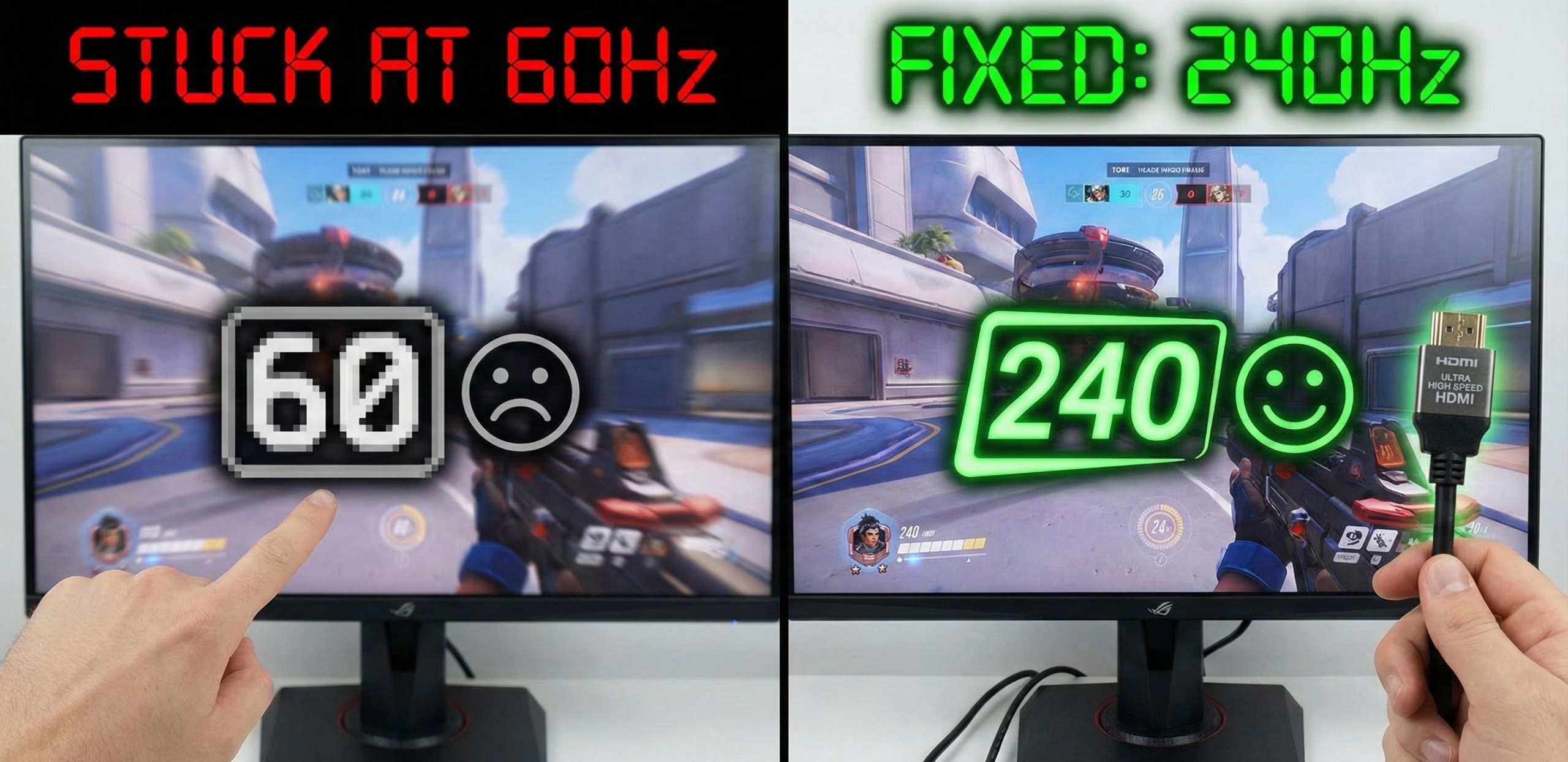
Why is My 240Hz Monitor Stuck at 60Hz? (5 Ways to Fix It)
Is your 240Hz monitor capped at 60Hz or 144Hz? In this article, we’ll show you how to unlock that 240Hz refresh rate by fixing Windows settings, GPU ports, and cable bottlenecks. It’ll all take less than 5 minutes.
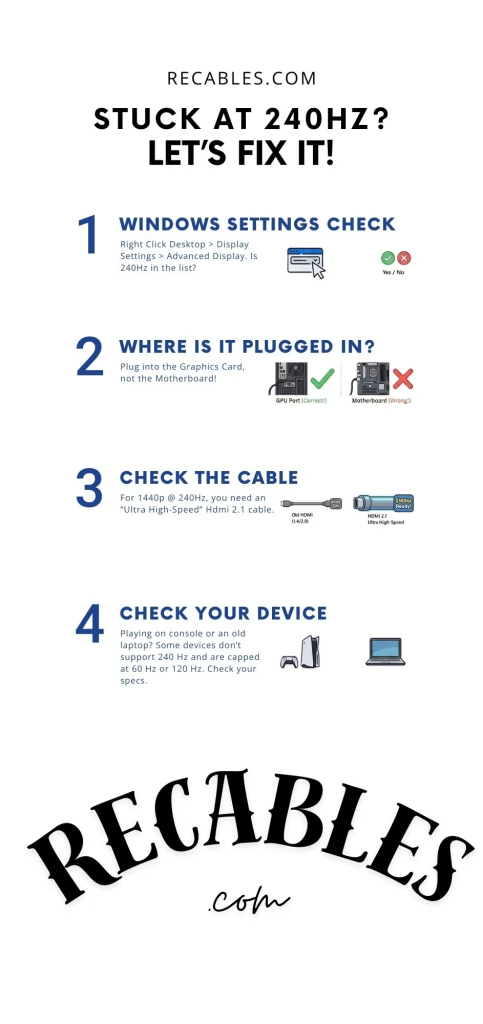
Troubleshooting in 30-Seconds: If your 240Hz monitor is only showing 60Hz, it is usually because of one of four things: Your device (desktop / laptop / gaming console) is unable to output 240 fps, a software setting in Windows, an underpowered HDMI cable, or using the wrong port on your graphics card.
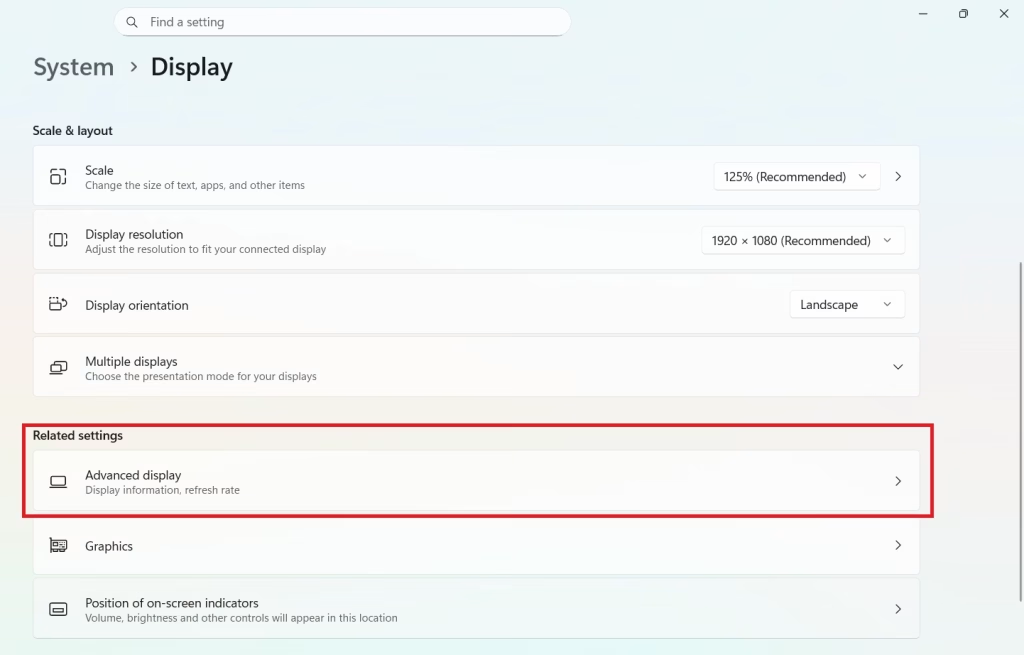
Quick Check: Go to Settings > System > Display > Advanced Display and ensure the “Choose a refresh rate” dropdown is actually set to 240Hz. If the option isn’t there, follow the steps below.
1. Change Your Windows Refresh Rate Settings

Often, Windows defaults to 60Hz to save energy or ensure compatibility.
- Right-click your desktop and select Display Settings.
- Scroll down to Advanced Display.
- Click the dropdown next to Choose a refresh rate.
- Select 240Hz. If you only see 60Hz or 120Hz as the max, your hardware is being limited elsewhere.
2. Check the Nvidia or AMD Control Panel
Sometimes Windows settings are overridden by your GPU software.
- For Nvidia: Open Nvidia Control Panel > Change Resolution. Ensure you are looking under the “PC” resolution category, not the “Ultra HD, HD, SD” category. High refresh rates are often hidden in the PC-specific list.
- For AMD: Open Radeon Settings > Gaming > Global Display. Ensure “FreeSync” is enabled and verify the “Specs” tab shows the correct Link Speed.
3. The “Cable Bottleneck” (HDMI vs. DisplayPort)
If the 240Hz option is missing entirely, your cable likely doesn’t have the bandwidth.
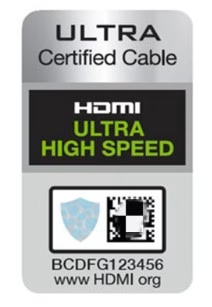
- HDMI: To hit 240Hz at 1440p, you must use an HDMI 2.1 “Ultra High Speed” cable. Older HDMI 1.4 or 2.0 cables will cap you at 60Hz or 144Hz.
- DisplayPort: Most 240Hz monitors prefer DisplayPort 1.4 or 2.1. If you are using an old “High Speed” cable from 2015, it won’t give you 1440p @ 240Hz performance.
4. Are You Using the Right Port?
Many users accidentally plug their monitor into the Motherboard HDMI port instead of the GPU port. Ensure your cable is plugged into the horizontal ports on your graphics card (lower down the PC case), not the vertical ports near the USB slots.
On the monitor end, some monitors have three HDMI ports, but only one might be version 2.1. Check your monitor’s manual to see which specific port supports “high bandwidth.”
5. Update Your Graphics Drivers
Old drivers can fail to “handshake” with a modern 240Hz display. Download the latest drivers from the Nvidia or AMD website, Install the drivers and then restart your PC.
Troubleshooting 240 Hz Display FAQ
Q: Can I get 240Hz with a standard HDMI cable?
A: No. You need a Premium High Speed (HDMI 2.0) for 1080p @ 240Hz or an Ultra High Speed (HDMI 2.1) cable for resolutions higher than 1080p.
Q: Why does my 240Hz monitor only show 144Hz?
A: This usually happens when using an HDMI 2.0 cable at 1440p resolution. To hit 240Hz at 1440p, you must switch to a DisplayPort 1.4 cable or an HDMI 2.1 cable.
Q: Does my laptop support 240Hz output?
A: Only if your laptop has a dedicated GPU and an HDMI 2.1 or Thunderbolt 4/USB4 port. Many budget laptops are physically capped at 60Hz output regardless of the cable used.
Benjamin Wallace

A software engineer, I have a strong interest in technology, bot software and hardware. Blogging is a way to share what I have learned and hopefully people will find it useful.



very informative articles or reviews at this time.