
How I Reduced My Crusader Kings 3 Loading Time from 40 Minutes to 5 Minutes
Here’s how I reduced my Crusader Kings 3 loading time from a ridiculous 40 minutes to just under 5 minutes. It can feel like forever for CK3 to load. I would go do a set of weights, make a cup of tea, and the game would still not be done loading. Thankfully, there are two easy fixes for the problem.
Table of Contents
Exclude Crusader Kings 3 Folder from Microsoft Defender Antivirus Scans (Time saved: 10 minutes)
By default, Windows Defender does a full scan of the CK3 folder every time you start up the game. This feels pretty unnecessary after the first time, so I added the game content folder to the Microsoft Defender whitelist. Here’s how to do that:
How To Add Crusader Kings III Folder To Windows Defender Whitelist
- Get CK3 folder path from Steam’s game settings page
- Open Windows Defender and navigate to “Virus and Threat protection” settings
- Add CK3 folder path to Windows Defender exclusions list
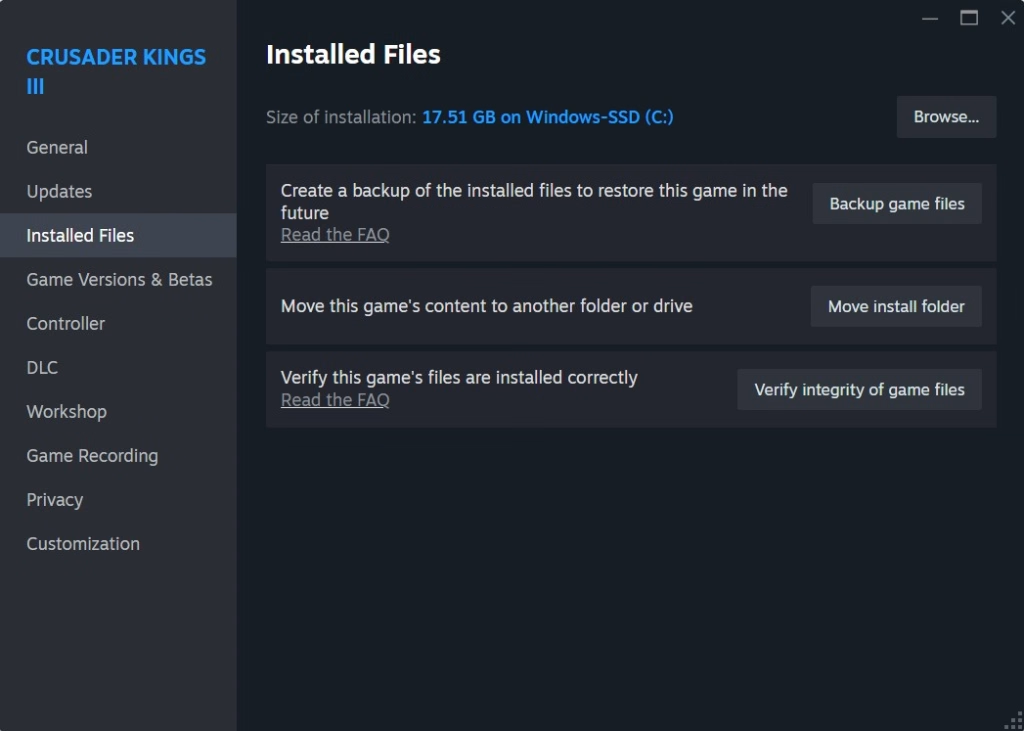
1. If you’re unsure of the where the game folder is, click on the settings icon in the CK3 game page on Steam as shown below.

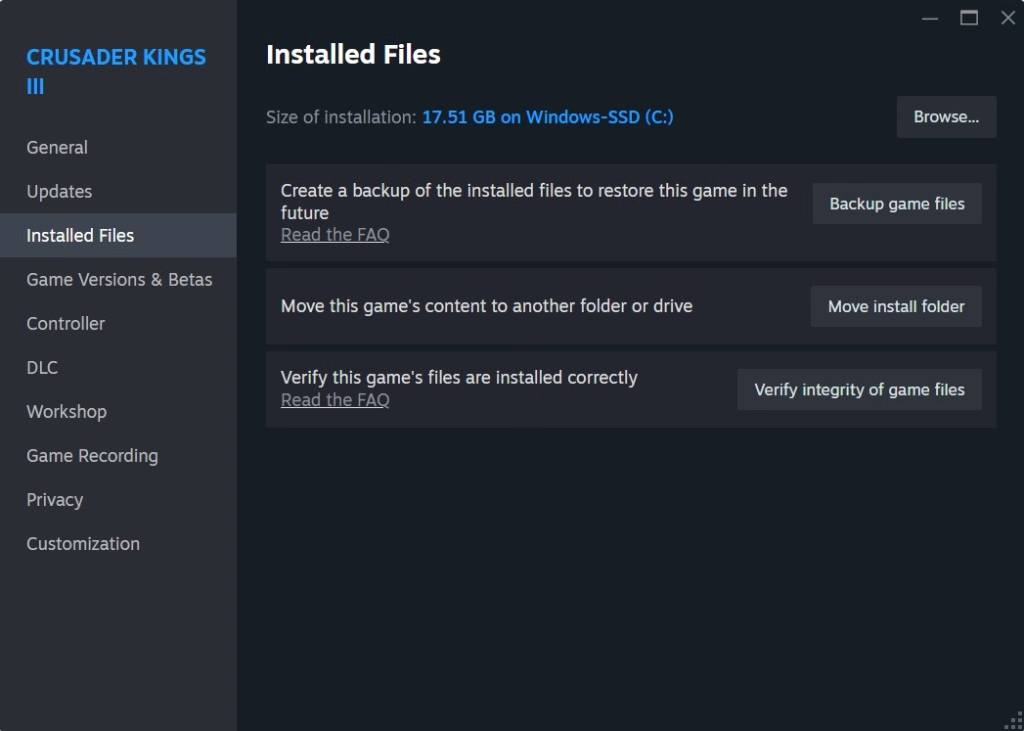
2. Navigate to the Installed Files section on the left and then click on ‘Browse’ at the top. This will also open up the CK3 folder in File Explorer. Now that you have the CK3 folder, it is time to add it to the whitelist.
3. Open up Windows Security and then click on Virus and Threat Protection on the left and then click on “Manage Settings”.
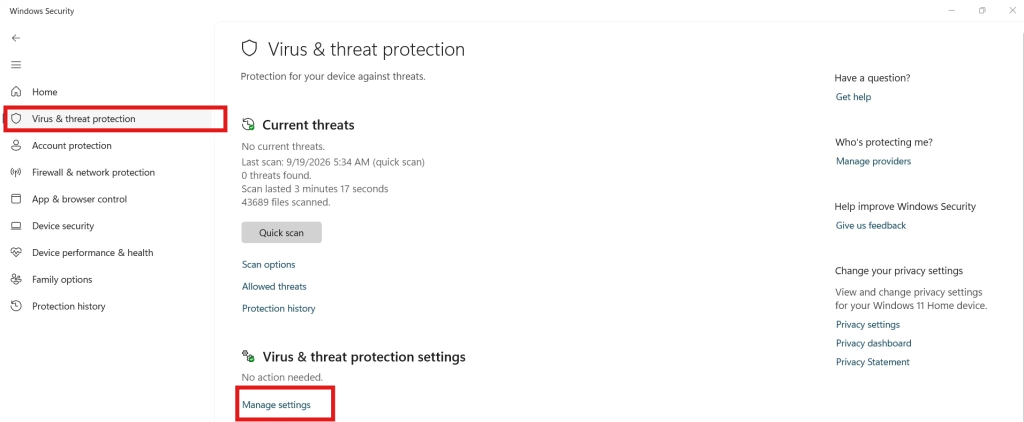
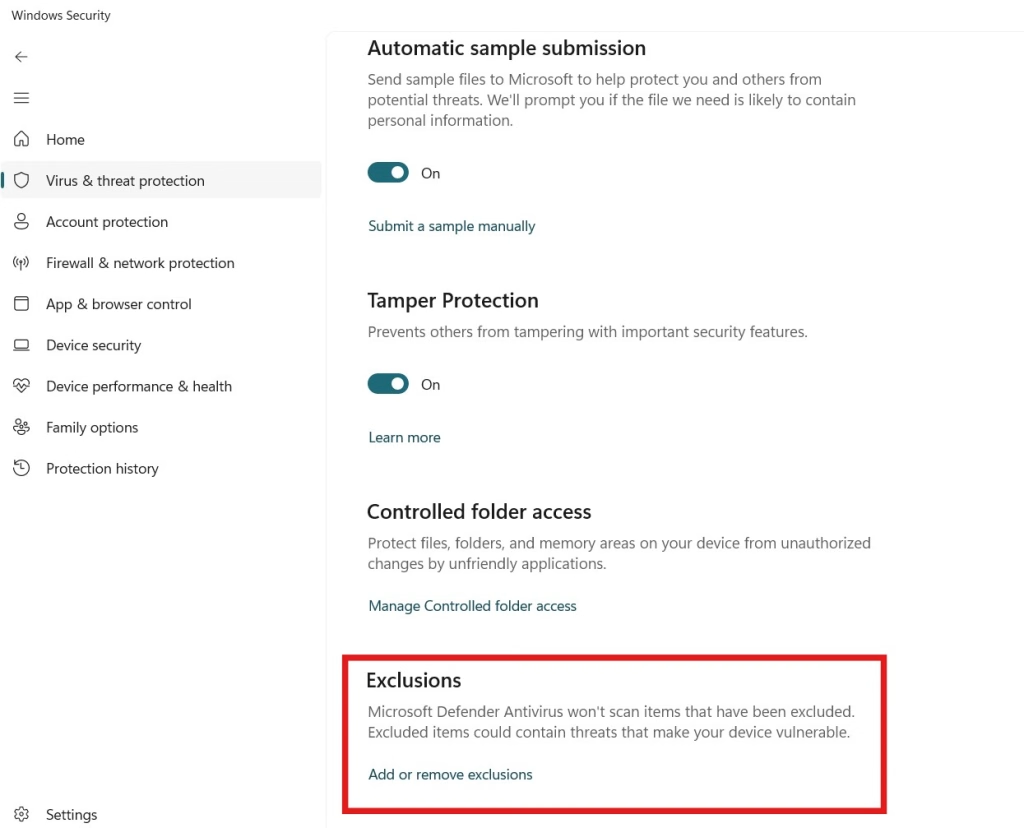
4. Scroll down to the bottom of the Virus & threat protection settings and then click on Add or remove exclusions to Windows Defender.
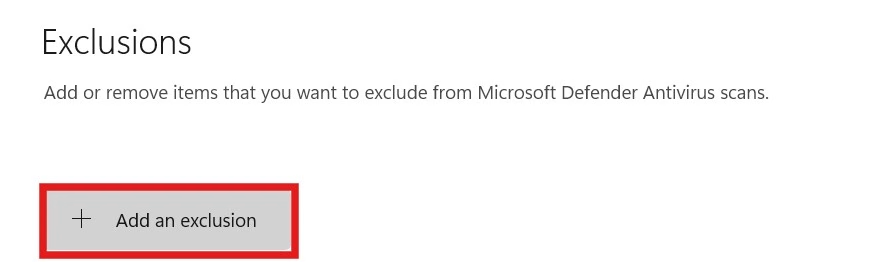
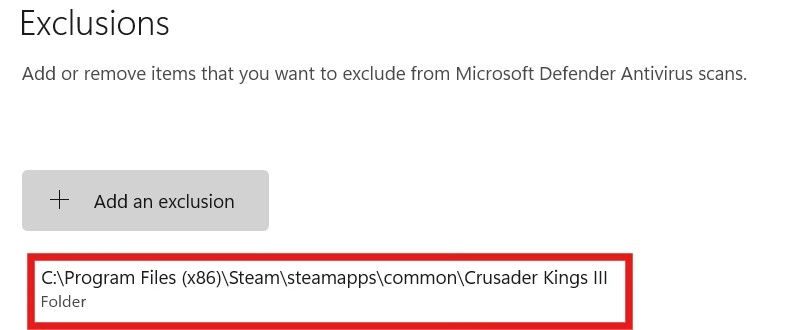
5. Then click on “Add an exclusion” and select the “folder” option. Then select the CK3 folder that you got from the earlier step. By default, my install folder was: “C:\Program Files (x86)\Steam\steamapps\common\Crusader Kings III”. Yours should be something similar.
6. Once done, you should see the folder that you just added in the Windows Defender exclusion list.
Move CK3 Folder to a SSD (Time saved: 25 minutes)
If you really want to reduce the Crusader Kings III loading time, you will need to install it on an SSD and run the game from there. I had initially installed CK3 on my HDD since I had more space on there but what’s the point of having more space if the game is unplayable?
If you’re playing the game on Steam, you don’t need to uninstall and reinstall Crusader Kings III. You can just use the “move install folder” option to move the game contents to your SSD.
How to Move Crusader Kings III Folder to SSD
- Open CK3 Steam game settings page
- Under the Installed Files tab, select “Move install folder”
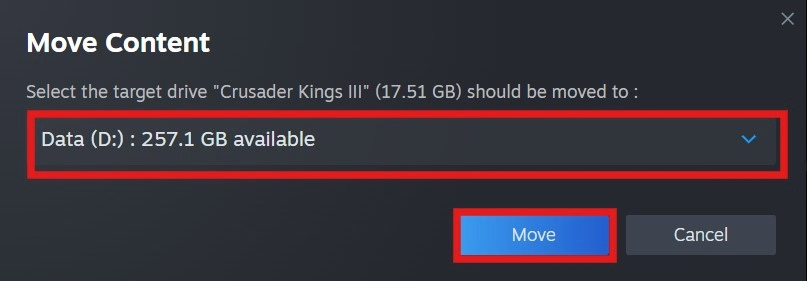
- Select your SSD in the dropdown options and click on “Move”
1. Open the Crusader Kings III settings page on Steam
2. Navigate to the Installed Files section on the left and then click on ‘Move install folder’ on the right.
3. Select your SSD drive and then click on “Move”
What If I Don’t Have an SSD or my SSD is full?
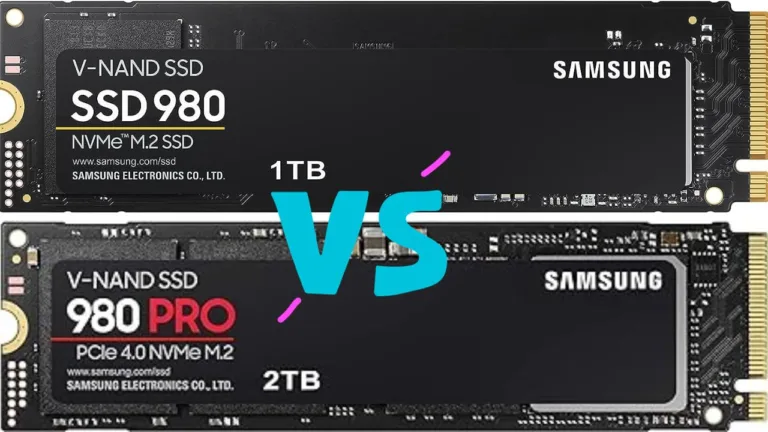
While it is possible to play games on your computer via an external SSD, there are some considerations that you need to keep in mind. An internal HDD offers speeds of around 500 MB/s. Meanwhile, an internal PCIe 4.0 SSD has read speeds of up to 7,500 MB/s.
With all these external SSDs, your desktop or laptop needs to have the same or better (backward compatible) port in order to achieve the maximum speed of the SSDs. Otherwise, your computer will be the bottleneck instead.
USB 3.2 Gen 2×2 (20 Gbps) SSDs
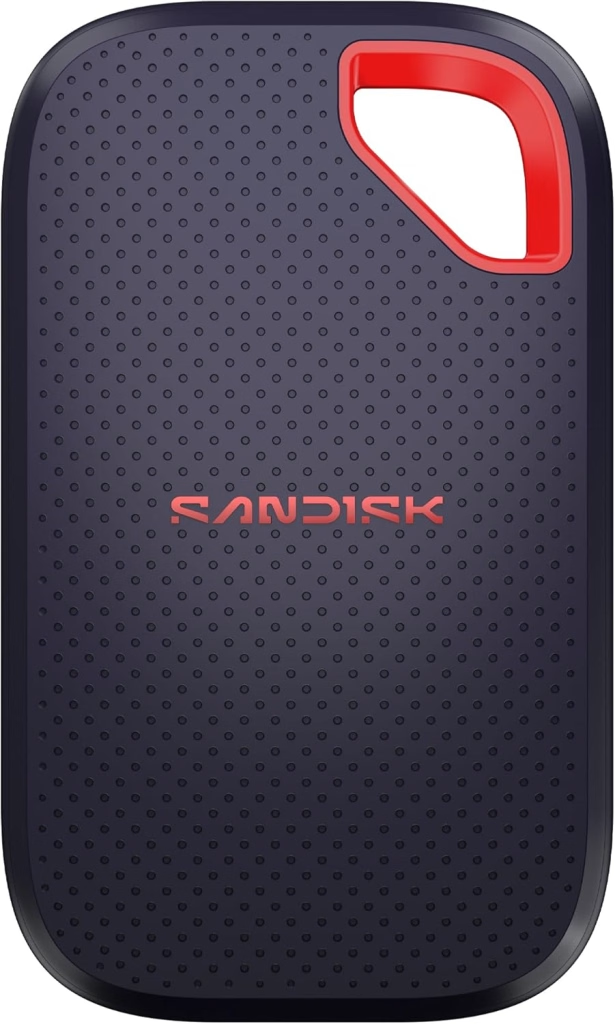
An SSD with a USB 3.2 Gen 2×2 (20 Gbps) interface offers data transfer speed of around 2,000 MB/s. One popular option is the Sandisk 1TB Extreme Portable SSD. Remember to choose the “new model” option and not the old model if you want the faster speeds!
USB 4.0 / Thunderbolt 4 (40 Gbps) SSDs
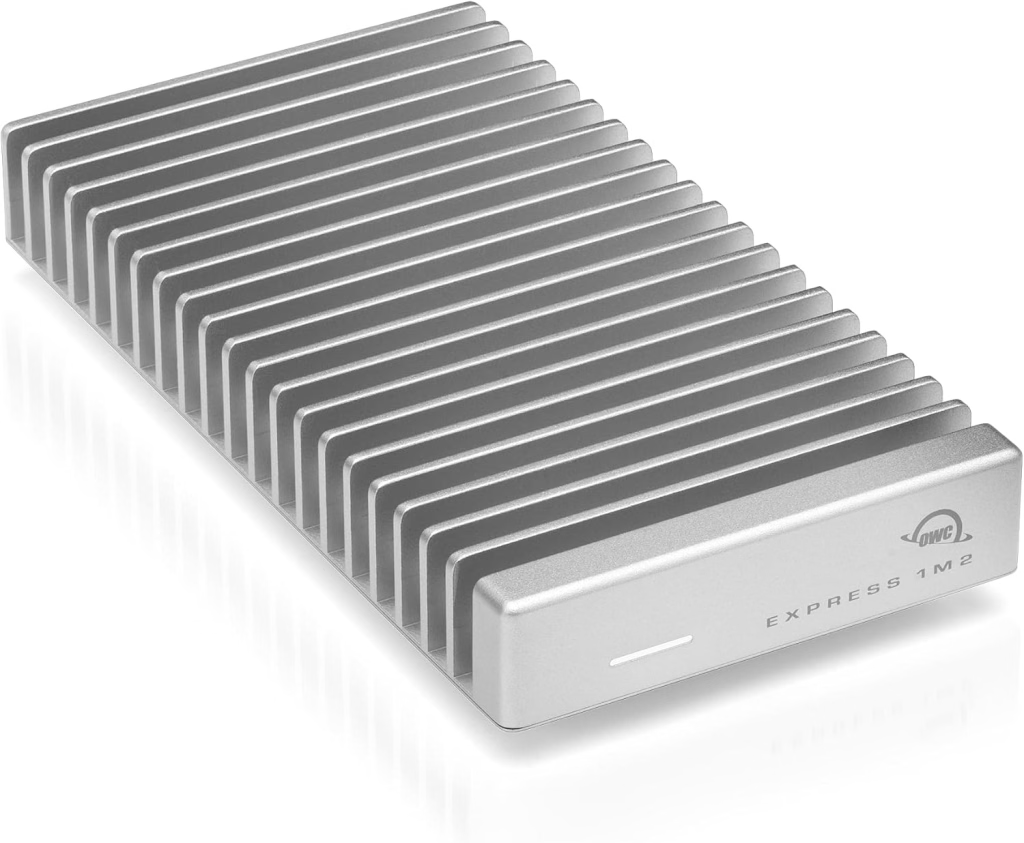
For even faster performance and what I’d think is the basic for serious gamers, look for SSDs with USB 4.0 or Thunderbolt 4 (40 Gbps) interface. These can do speeds of 2,700 to 3,800 MB/s. One popular option is the OWC Express 1M2 1TB USB4 40Gb/s Portable NVMe SSD Storage Solution.
USB4 80G / Thunderbolt 5 SSDs
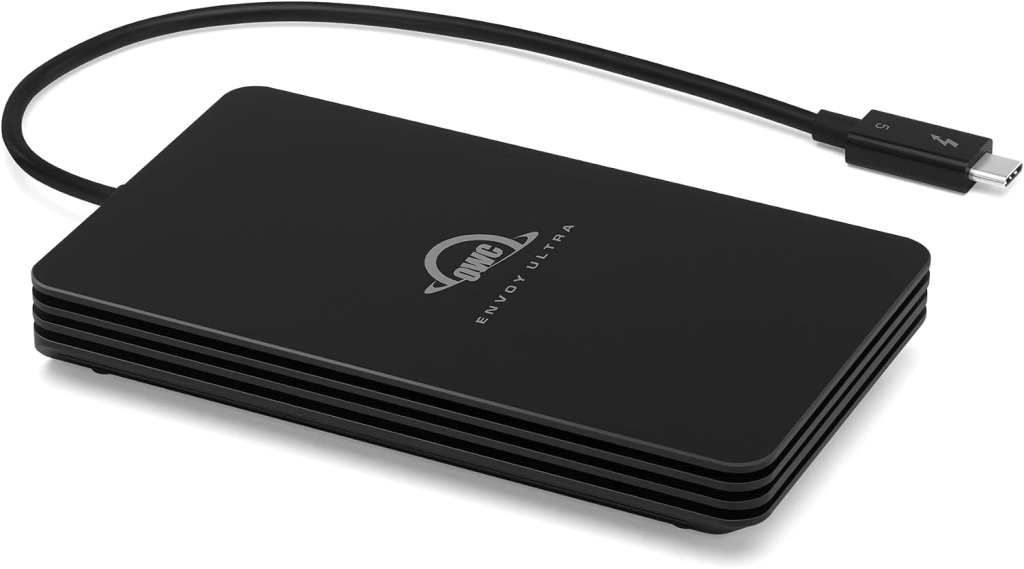
The current top of the line portable SSDs in 2026 are those with a USB4 80G / Thunderbolt 5 interface. These offer data transfer speeds of more than 6,000 MB/s. These are speeds that are pretty close to high-end internal PCIe 4.0 SSDs. One popular option in this category is the OWC Envoy Ultra 4TB Thunderbolt 5 Portable NVMe SSD.
Final Thoughts
To reduce the Crusader Kings III loading time, you need to do two things:
- Add the game to the Windows Defender whitelist
- Install and run the game on an SSD
Remember, that if you add the game folder to the whitelist and then shift the folder on to an SSD, you will need to add the new folder to the Windows Defender whitelist. Windows isn’t smart enough to see that the folder has moved and update the whitelist automatically, unfortunately.
Benjamin Wallace

A software engineer, I have a strong interest in technology, bot software and hardware. Blogging is a way to share what I have learned and hopefully people will find it useful.