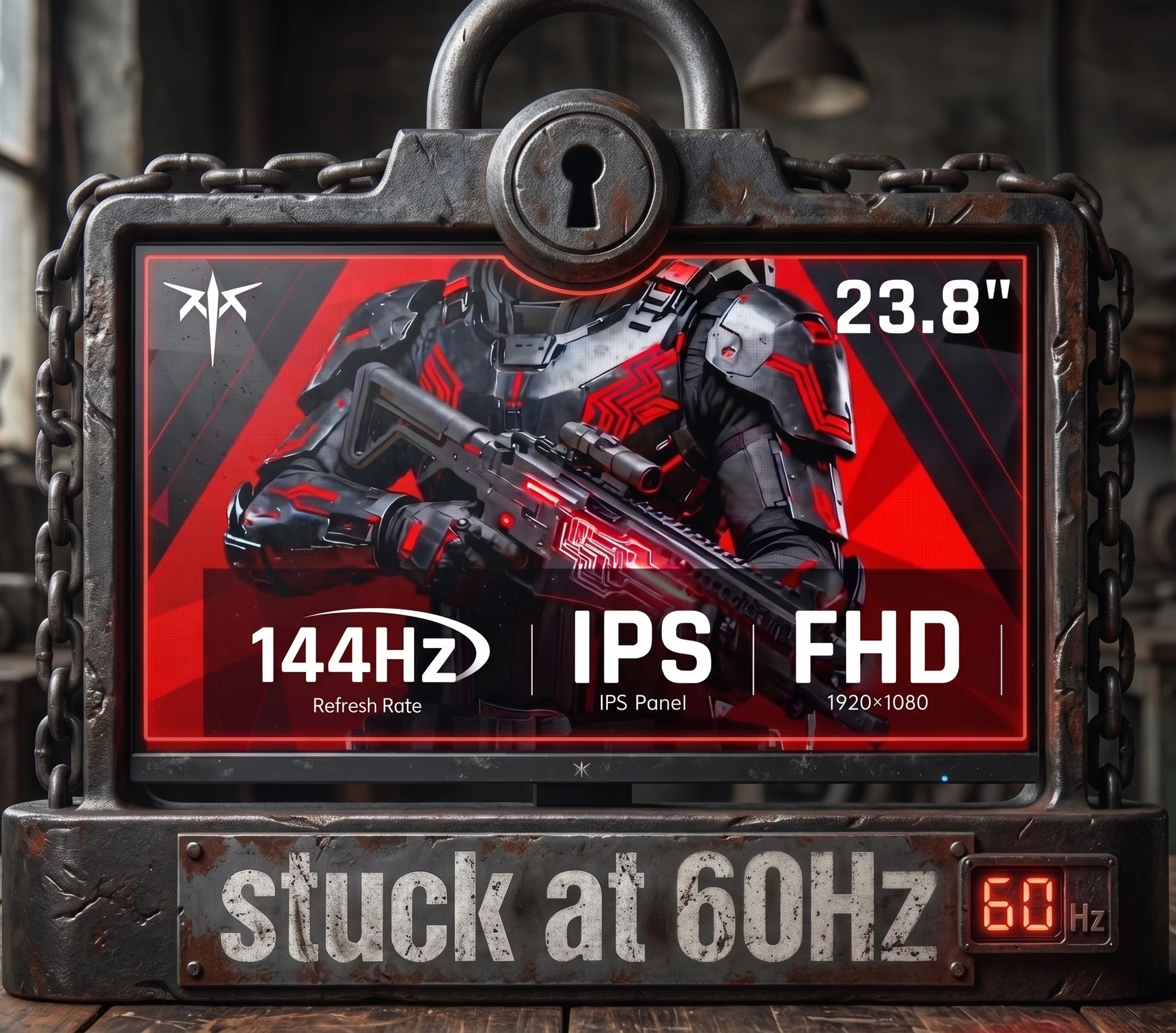
Why Your 144Hz/240Hz Monitor is Stuck at 60Hz in Windows
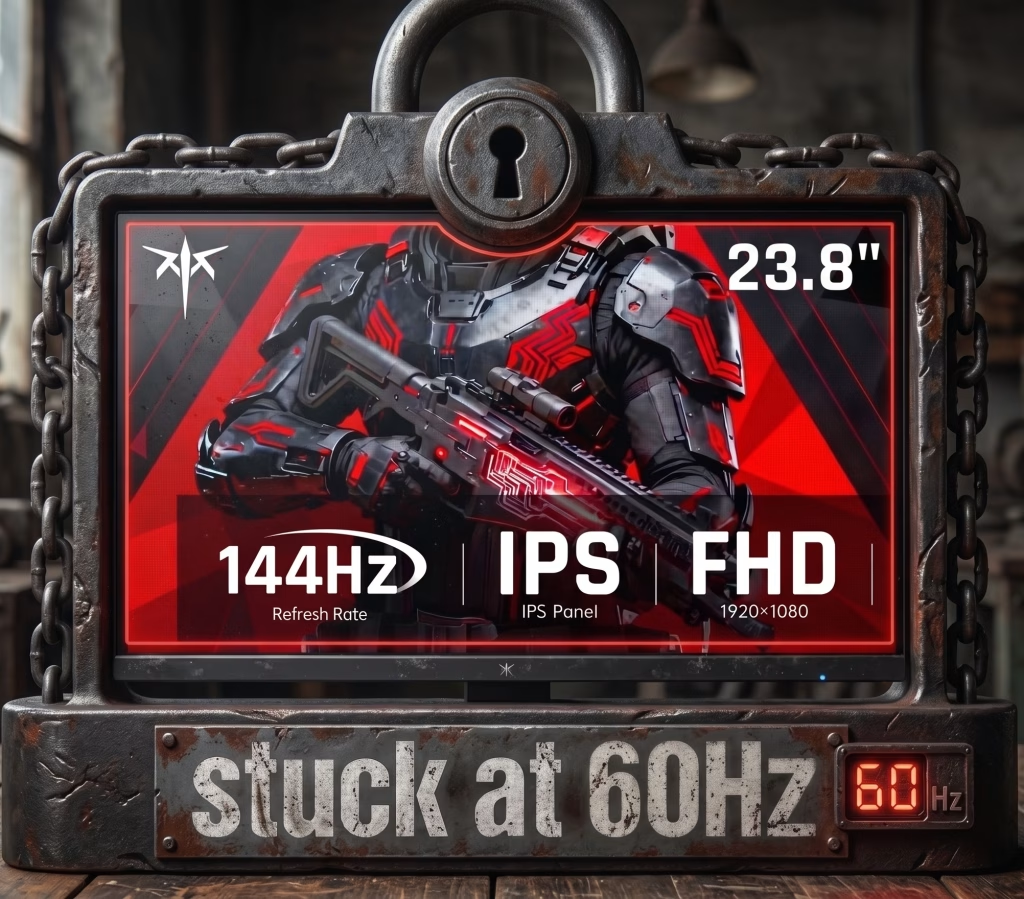
The Windows Safety Lock
Are you stuck at 60Hz even with a new 144Hz, 240Hz, or 4K gaming monitor like the KTC FHD 144Hz Office Gaming Monitor (Settings > System > Display > Advanced Display)?
You might be thinking of reinstalling your graphics card drivers or returning the monitor but before you consider those options, it is important to understand why Windows is hiding the faster refresh rate options.
The Handshake Rule: When you boot up your computer, your GPU sends a high-speed data packet handshake down the cable to Windows. If there are too many packet errors or if your cable lacks the required data lanes, Windows automatically strips the high refresh rate options from your menu to prevent your screen going into a black-screen loop.
Step 1: Rule out the 3 Quick Refresh Rate Caps
Try to rule out some basic issues before looking at your hardware:
- The Display Adapter Properties Glitch: The Windows 11 UI can be glitchy. Scroll to the bottom of the Advanced Display page, click Display adapter properties, navigate to the Monitor tab, and check the dropdown menu there.
- Dedicated GPU Port Routing: If you are on a desktop PC, ensure your cable is plugged directly into your dedicated graphics card (Nvidia RTX / AMD Radeon) horizontal ports, not the vertical motherboard port near your USB slots. Motherboard ports route traffic through your CPU’s integrated graphics card which typically max out at 60Hz.
- Control Panel Duplication: If you use an Nvidia card, open the Nvidia Control Panel and head to Change Resolution. Scroll past the “Ultra HD, HD, SD” TV resolutions (which are capped at 60Hz) down to the PC section to unlock the high-refresh rates.
Step 2: Check Your Cable
If none of the above solutions were able to unlock your monitor’s higher refresh rates, then your HDMI cable is the most likely bottleneck.
While your monitor might be a premium one, many manufacturers ship them with cheaper cables in order to protect their profit margins. While a “high-speed” cable would seem to any ordinary user that it would be able to handle higher refresh rates, that is not the case. As we explained above, when the HDMI cable is unable to handle higher refresh rates, Windows will cap you at 60Hz.
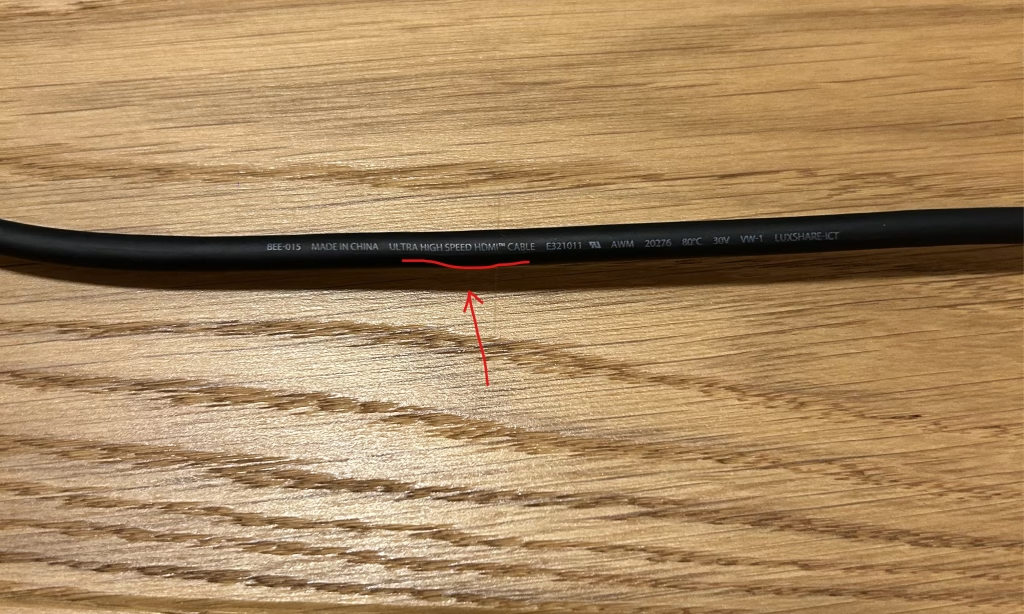
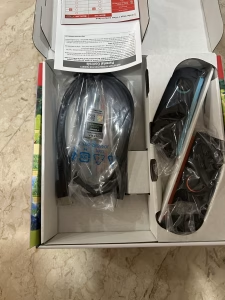
If your cable is from a reliable manufacturer, they would have stamped the HDMI version on cable’s rubber insulation jacket. The picture above is from the HDMI cable that came with my Nintendo Switch 2. As you can see, the “Ultra High-Speed” text is printed in grey on the cable. Alternatively, if you have the packaging that the cable came in, an authentic HDMI cable should come with a QR code that you can scan to verify what version it is like in the image below
- “High Speed”: This is a legacy HDMI 1.4/2.0 baseline wire capped at 18 Gbps. It will lock you out of high refresh rates at 4K resolution and above.
- “Ultra High Speed”: This is a true 48 Gbps HDMI 2.1 specification wire built for 120Hz and 144Hz refresh rates at higher resolutions.
Check out our visual guide on how to tell if your HDMI cable is 2.1 vs 2.0 to verify whether your cable is Ultra High-Speed or not.
Step 3: Monitor OSD, GPU Limits, and Display Drivers
If you have done the above two steps but your monitor is still stuck at 60Hz, then the handshake failure is happening at the hardware or driver level. Run through this final diagnostic checklist:
1. The Monitor’s On-Screen Display (OSD) Lock
Many high-end monitors ship in “Compatibility Mode” to ensure they work with older laptops and consoles out of the box.
- Use the physical buttons on your monitor to access its internal menu.
- Look for settings labeled HDMI Version, DisplayPort Version, or Overclocking.
- If HDMI is set to 2.0, switch it to 2.1. If Overclocking is disabled, turn it on. Your screen will immediately blink and unlock the new refresh rates.
2. Your GPU’s Physical Port Limits
Other than your monitor and cable, the other factor to consider is your GPU. Just because your monitor supports HDMI 2.1 doesn’t mean your graphics card does. Older GPUs (like a GTX 1080 or RTX 20-series), only have HDMI 2.0 ports (18 Gbps). In this case, your GPU is the bottleneck and you won’t be able to access higher resolution and refresh rates without upgrading your GPU.
3. The “Generic PnP” Driver Wipe
Using the default “Generic PnP Monitor” driver could also be a limiting factor for your monitor’s higher refresh rates.
- Download the Monitor Driver: Go to the manufacturer’s website and download the specific
.infdriver file for your exact monitor model. - The Nuclear Option (DDU): If the graphics drivers are corrupted, a standard update won’t fix the handshake. Download Display Driver Uninstaller (DDU), boot into Windows Safe Mode, completely wipe your Nvidia/AMD drivers, and cleanly install the newest version.
Final Thoughts on Unlocking Higher Refresh Rates
If you have bought yourself a high-end monitor but aren’t able to get the resolution and refresh rates promised in the specs, then there are only a few possible causes. Run through the checklist above sequentially, from easiest to hardest, and pinpoint the issue in your setup:
- Windows UI glitch / Cable connection issue
- Not using a HDMI 2.1 cable
- Graphics card capability / Driver issues
We hope you have found this guide and checklist useful and that you are no longer stuck at 60Hz.
Benjamin Wallace

A software engineer, I have a strong interest in technology, bot software and hardware. Blogging is a way to share what I have learned and hopefully people will find it useful.

I really appreciated a simple explanation of a complex idea while browsing online and I look forward to reading more from you
Thank you for the compliment! Did the article help you resolve your problem?
very informative articles or reviews at this time.