
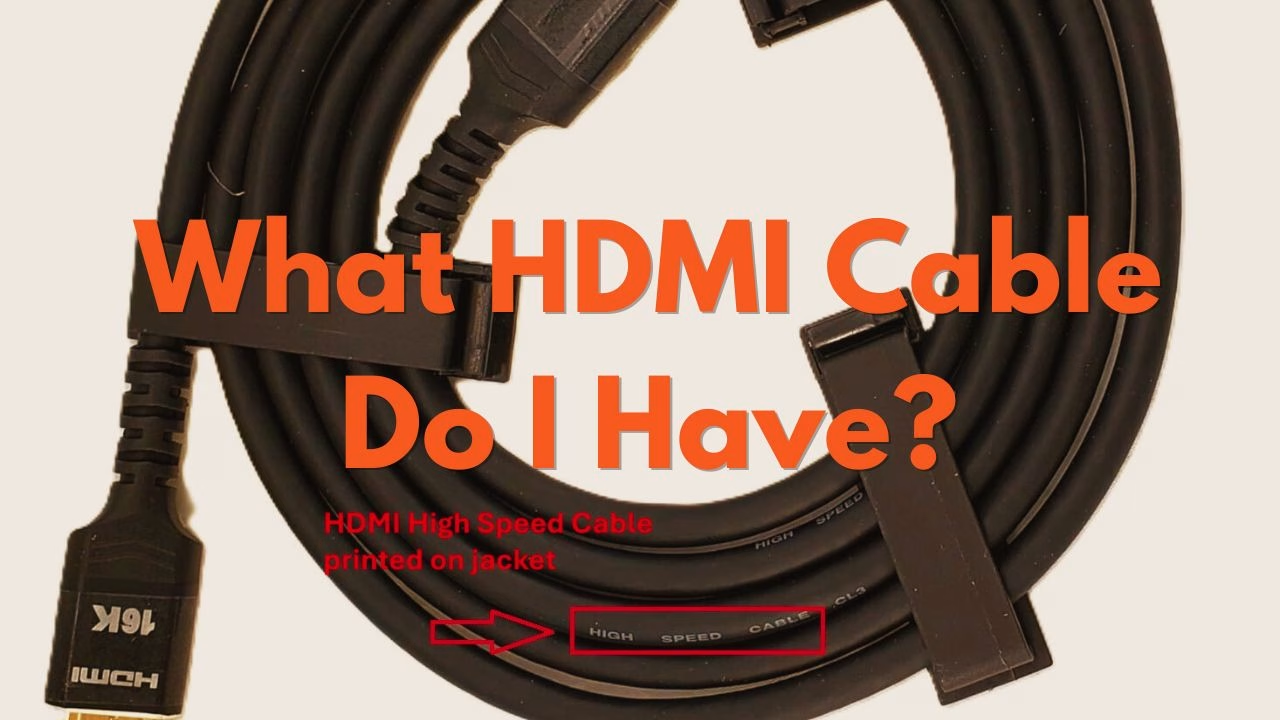
How to Tell if Your HDMI Cable is 2.1 or 2.0
Because HDMI cables look physically identical, with the same connector, it is impossible to tell them apart just by looking at the metal ends. However, the internal wiring and shielding are vastly different. Using a 2.0 cable on a 2.1 device like the RTX 5080 could result in flickering, black screens, or your 240Hz monitor being stuck at 60Hz.
Here are the three ways to identify whether your cable is HDMI 2.0 or HDMI 2.1.
1. The QR Code & Hologram
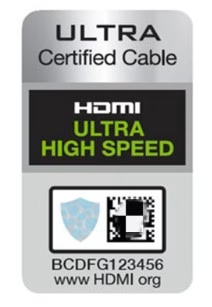
Since 2020, the HDMI Forum has mandated a specific “Ultra High Speed” certification for 2.1 cables. If you still have the box, look for a holographic label.
The Label must say “Ultra High Speed HDMI” and feature a silver hologram. Download the official HDMI Cable Certification App (iOS/Android) and scan the QR code on the box. If the app returns “Authentic,” the cable is guaranteed to handle 48Gbps.
If the box says “HDMI 2.1 Compatible” but doesn’t have the official holographic QR code, it has likely not been certified and may fail to reach 120Hz.
2. Check the “Jacket Printing”
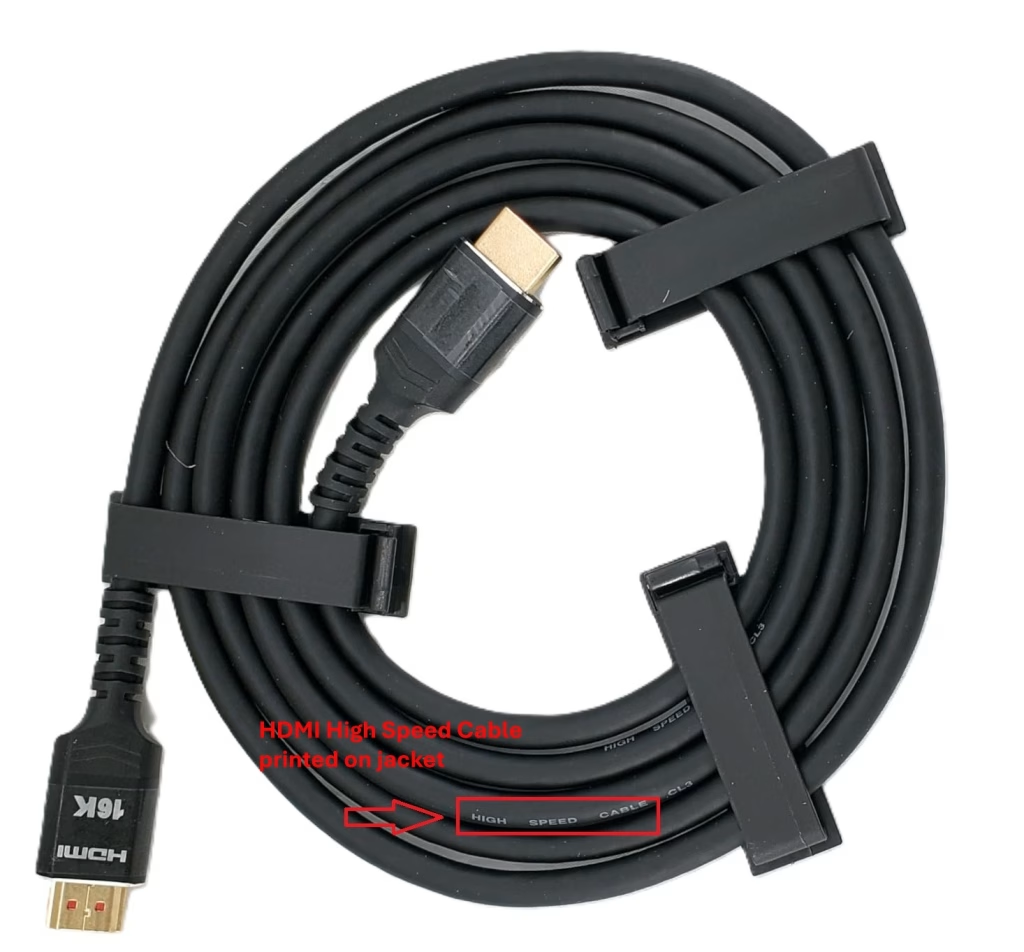
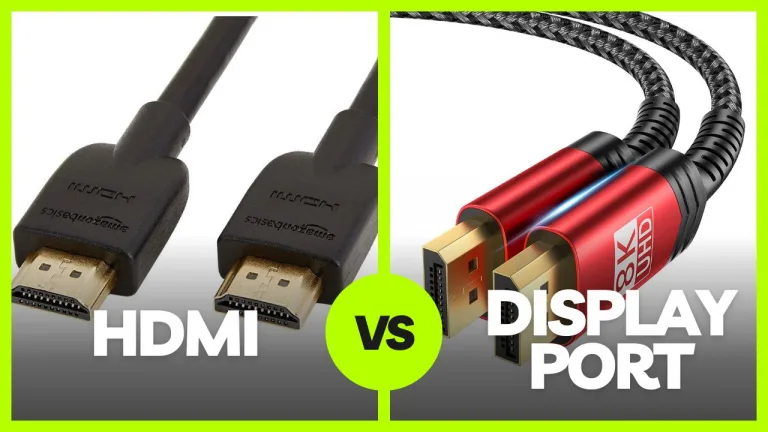
If you’ve thrown away the box, look at the cable’s outer sleeve (the jacket). Certified manufacturers typically print the cable’s official name every few feet like in the picture above.
- HDMI 2.1: Look for the phrase “Ultra High Speed HDMI Cable.”
- HDMI 2.0: Look for “High Speed HDMI Cable.”
Unlike scanning the hologram, identifying whether a HDMI cable is HDMI 2.0 or 2.1 by the text on the cable jacket is less reliable. Some HDMI 2.1 cables also just have “High Speed HDMI Cable” printed on them.
3. The Console Diagnostic Test
If you have a gaming console like a Playstation 5 or an Xbox, you can see if your display settings are limited on your screen. Of course, this assumes that your TV or screen is capable of 1440p @ 120Hz.
On PlayStation 5:
- Go to Settings > Screen and Video > Video Output.
- Select Video Output Information.
- Look at the Resolution. If it shows “3840 x 2160 – 120Hz” or mentions VRR (Variable Refresh Rate), you have a 2.1 cable.
- Note: If it shows 60Hz even though you have a 120Hz TV, the cable is likely the bottleneck.
On Xbox Series X:
- Go to Settings > General > TV & Display Options.
- Select 4K TV Details.
- If you see green checkmarks next to “4K UHD at 120Hz” and “Dolby Vision,” your cable is successfully providing 2.1 bandwidth.
Technical Comparison: Why HDMI Version Matters
The jump from HDMI 2.0 to 2.1 is a significant, nearly 3x increase, in data throughput.
| Feature | HDMI 2.0 (Premium) | HDMI 2.1 (Ultra) |
| Max Bandwidth | 18 Gbps | 48 Gbps |
| Max Resolution | 4K @ 60Hz | 8K @ 60Hz / 4K @ 120Hz |
| HDR | Static (HDR10) | Dynamic (Dolby Vision) |
| Audio | ARC | eARC (Uncompressed) |
| Best For | Streaming (Netflix/Roku) | PS5, Xbox Series X, RTX 5080 |
Recommendations For The Best Certified Ultra High Speed Cables
If your current cable failed the tests above, you need a replacement that is VESA and HDMI Forum certified.
| Cable | Best For | Why We Recommend It |
| Zeskit Maya 2.1 | Enthusiasts | One of the first cables ever certified. It has thousands of 5-star reviews for 4K/120Hz stability. |
| Cable Matters 3-Pack | Value | The best way to “future-proof” your whole living room for the price of one premium cable. |
| Ugreen 8K HDMI | Durability | Features a reinforced braided jacket that is good for tight bends behind wall-mounted TVs. |
For a deeper dive into the specific performance of these picks, check out our full guide on the Best Budget HDMI 2.1 Cables for 240Hz Gaming.
Do You Need to Upgrade To A HDMI 2.1 Cable?
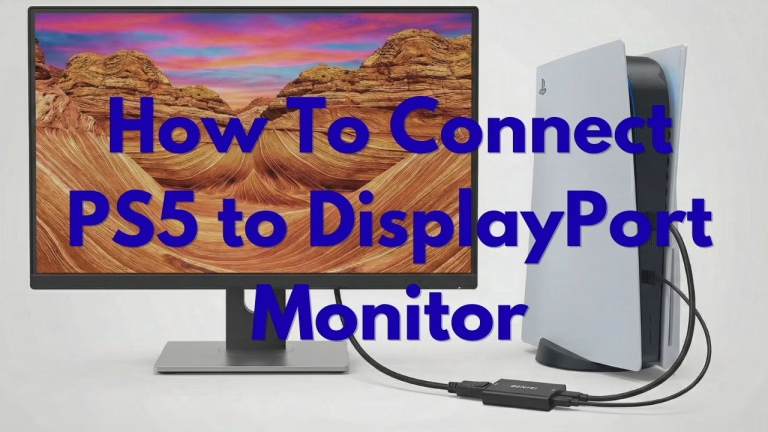
If you are playing on a standard 4K TV at 60Hz, your existing HDMI 2.0 cable is perfectly fine. However, if you have a PS5 and need to connect it to a DisplayPort monitor or a 4K@120Hz 120Hz TV, the Ultra High Speed 2.1 cable is necessary in order to achieve what the console/TV is capable of.
Benjamin Wallace

A software engineer, I have a strong interest in technology, bot software and hardware. Blogging is a way to share what I have learned and hopefully people will find it useful.
wish you best and best
Thank you and if you need any info on HDMI cables feel free to drop a message any time.
It may be sufficient for first-time readers.
I think so too… wouldn’t read this multiple times.
I learned something new from this post.
Cool… glad it was useful and that you learned something. That’s what we’re all here for after all 🙂
Very informative and easy to understand.
Thank you and if you have any questions on which HDMI cable to choose, don’t feel shy to leave a comment.
I very delighted to find this internet site on bing, just what I was searching for as well saved to fav
Thanks… i think a lot of my readers are coming from Bing. Google has switched to AI search so I’m seeing a drop-off there. Do stick around for more.
There is definately a lot to find out about this subject. I like all the points you made
Yeah it can be tricky, although when in doubt, i’d recommend that you just buy a new 2.1 cable. They only cost around $14 for a good one and will last for at least 5 years.
You’re so awesome! I don’t believe I have read a single thing like that before. So great to find someone with some original thoughts on this topic. Really.. thank you for starting this up. This website is something that is needed on the internet, someone with a little originality!
Thank you for your kind words. Did it help you choose your 2.1 cable or at least help identify what kind of HDMI cable you had?
Great information shared.. really enjoyed reading this post thank you author for sharing this post .. appreciated
Glad it was helpful for you. These days, I’d recommend folks to just go for a HDMI 2.1 cable since it really doesn’t cost much more.
Great content! Keep up the good work!
Thanks, Exo. Hope the post helped you determine which type of HDMI cable you have.
There is definately a lot to find out about this subject. I like all the points you made
There sure is, Malaki. HDMI cables are something that most users don’t give much thought to and so that’s why they’re often the easiest bottleneck to fix.
Your blog is a constant source of inspiration for me. Your passion for your subject matter is palpable, and it’s clear that you pour your heart and soul into every post. Keep up the incredible work!
Thanks, Cine. Hope you were able to figure out which type of cable you have and buy a new one if needed.